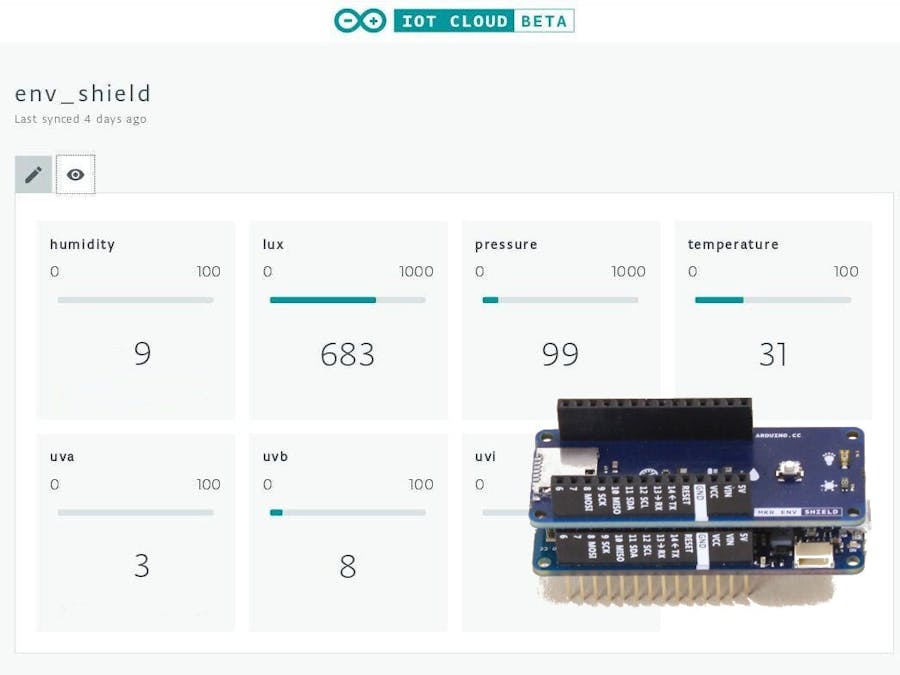
สร้าง Dashboard เช็คสภาพอากาศส่วนตัวด้วย Arduino IoT Cloud และ MKR ENV Shield

Environmental Data on Arduino IoT Cloud

ยกทุกข้อมูลสิ่งแวดล้อมมารวมไว้ในหน้าจอเดียว!

[ UPDATE ]: โปรดทราบว่า Arduino IoT Cloud ได้มีการอัปเดตและเปลี่ยนแปลงไปมากตั้งแต่บทความต้นฉบับนี้ถูกเขียนขึ้น ซึ่งอาจทำให้บางหน้าตาของระบบดูต่างออกไป สามารถเข้าไปดูคู่มือที่อัปเดตล่าสุดได้ที่ Arduino Cloud นะครับ

ในโปรเจกต์นี้ เราจะมาเรียนรู้วิธีการดึงข้อมูลสภาพแวดล้อมต่างๆ เช่น อุณหภูมิ ความชื้น ความดัน และแสงแดด จากบอร์ด MKR ENV Shield แล้วส่งข้อมูลผ่าน WiFi ไปโชว์เป็นกราฟสวยๆ บนหน้าเว็บ Dashboard ของ Arduino Cloud ในที่เดียวเลยครับ

อุปกรณ์ที่ต้องใช้ (What you need)

โปรเจกต์นี้ใช้อุปกรณ์หลักๆ แค่ 3 ชิ้นเท่านั้น:

  • Arduino MKR WiFi 1010: พระเอกของงานนี้ที่คอยประมวลผลและส่งข้อมูล ด้วยชิป SAMD21 และโมดูล NINA-W10 ที่รองรับทั้ง WiFi และ BLE
  • Arduino MKR ENV Shield: แผงเซ็นเซอร์สำหรับวัดอุณหภูมิ ความชื้น ความดันอากาศ แสง และรังสี UV
  • Battery pack: เอาไว้เสียบเป็นแหล่งพลังงานตอนที่เราเอาเครื่องไปตั้งไว้นอกบ้าน

นอกจากนี้ คุณต้องมีแอคเคานต์ของ Arduino IoT Cloud และรหัสผ่าน WiFi บ้านด้วยนะครับ

การประกอบฮาร์ดแวร์ (Hardware configuration)

การประกอบนั้นง่ายสุดๆ แค่นำบอร์ด MKR WiFi 1010 และ MKR ENV Shield มาเสียบซ้อนกัน โดยดูให้ขาพินและป้ายชื่อต่างๆ ตรงกัน

Arduino MKR Configuration 1
View more (ดูรูปการประกอบและเสียบแบตเตอรี่)
Arduino MKR Configuration 2

จากนั้นเสียบหัวต่อของ Battery pack เข้าที่ช่องเสียบแบตเตอรี่สีขาวบนบอร์ด MKR WiFi 1010 ได้เลยครับ

Battery Connected

โครงสร้างโค้ดและการดึงข้อมูล (Code structure)

โค้ดในโปรเจกต์นี้จะแบ่งเป็น 2 ส่วนหลักๆ คือ โค้ดส่วนโครงสร้าง (Skeleton template) ที่ทาง Arduino IoT Cloud สร้างให้อัตโนมัติสำหรับจัดการการเชื่อมต่อ และอีกส่วนคือไลบรารี Arduino_MKRENV ที่เราต้องใส่เพิ่มเข้าไปเพื่อใช้อ่านค่าจากเซ็นเซอร์

ในไฟล์ thingProperties.h จะมีข้อมูลการเชื่อมต่อ WiFi (SSID และ PASSWORD) รวมถึงการใช้คีย์รักษาความปลอดภัยจากชิป Crypto ในบอร์ดเพื่อยืนยันตัวตนกับคลาวด์

View more (ดูตัวอย่างโครงสร้างโค้ดส่วนย่อย / Copy Code)

ส่วนที่ 1: การเรียกใช้ไลบรารี (Include)

#include "thingProperties.h"
#include <Arduino_MKRENV.h>

ส่วนที่ 2: ฟังก์ชัน Setup (การตั้งค่าเริ่มต้น)

void setup() {
 // Initialize Serial and wait for port to open:
 Serial.begin(9600);
 // This delay gives the chance to wait for a Serial Monitor without blocking if none is found
 delay(1500);
 // Defined in thingProperties.h
 initProperties();
 // Connect to Arduino IoT Cloud
 ArduinoCloud.begin(ArduinoIoTPreferredConnection);
 /*
The following function allows you to obtain more information
related to the state of network and IoT Cloud connection and errors
the higher number the more granular information you’ll get.
The default is 0 (only errors).
Maximum is 4
*/
 setDebugMessageLevel(2);
 ArduinoCloud.printDebugInfo();
 if (!ENV.begin()) {
  Serial.println("Failed to initialize MKR ENV shield!");
  while(1);
 }
}

ส่วนที่ 3: ฟังก์ชัน Loop (การดึงข้อมูลและส่งขึ้นคลาวด์)

void loop() {
 ArduinoCloud.update();
 // Your code here 
 humidity = int(ENV.readHumidity());
 lux = int(ENV.readIlluminance());
 pressure = int(ENV.readPressure());
 temperature = int(ENV.readTemperature());
 uva = int(ENV.readUVA());
 uvb = int(ENV.readUVB());
 uvi = int(ENV.readUVIndex());
 delay(1000);
}

วิธีตั้งค่าและใช้งานจริง (How to set up and use)

หลังจากต่อบอร์ดเสร็จแล้ว ให้เสียบสาย USB เข้าคอมพิวเตอร์และล็อกอินเข้าบัญชี Arduino Cloud ของคุณ หากคุณยังใหม่มาก แนะนำให้ทำตามคู่มือ Arduino Cloud Getting Started ก่อนครับ

ในหน้าเว็บ ให้คุณสร้าง Properties ตามตารางด้านล่างนี้เป๊ะๆ (ระวังเรื่องตัวพิมพ์เล็ก-ใหญ่ด้วยนะครับ):

IoT Properties Table
View more (ดูรูปการตั้งค่า Widget บนเว็บ)

ทุกครั้งที่คุณกดสร้าง Widget ใหม่ ระบบจะให้กรอกฟอร์มประมาณนี้ครับ

Widget Form

เมื่อสร้างครบทุกตัว หน้าต่าง Properties ของคุณจะออกมาหน้าตาแบบนี้

Properties List

ตัวอย่างหน้าจอ Dashboard เมื่อข้อมูลถูกส่งเข้ามา

Properties View

เมื่อสร้าง Properties ครบแล้ว ให้คลิกที่ปุ่ม edit code ระบบจะพาคุณไปที่หน้าเว็บ Arduino Create Web Editor ให้คุณเอาโค้ดเต็มด้านล่างนี้ ไปวางทับสเกตช์ (Sketch) ในแท็บแรกได้เลยครับ

View more (ดู Full Code และกดคัดลอก / Copy Code)
/* Sketch generated by the Arduino IoT Cloud Thing "env_shield"
 https://create.arduino.cc/cloud/things/829941ed-efdd-4572-91c0-e93a732192ec 
 Arduino IoT Cloud Properties description
 The following variables are automatically generated and updated when changes are made to the Thing properties
 int humidity;
 int lux;
 int pressure;
 int temperature;
 int uva;
 int uvb;
 int uvi;
 Properties which are marked as READ/WRITE in the Cloud Thing will also have functions
 which are called when their values are changed from the Dashboard.
 These functions are generated with the Thing and added at the end of this sketch.
*/
#include "thingProperties.h"
#include <Arduino_MKRENV.h>
void setup() {
 // Initialize serial and wait for port to open:
 Serial.begin(9600);
 // This delay gives the chance to wait for a Serial Monitor without blocking if none is found
 delay(1500); 
 // Defined in thingProperties.h
 initProperties();
 // Connect to Arduino IoT Cloud
 ArduinoCloud.begin(ArduinoIoTPreferredConnection);
 /*
    The following function allows you to obtain more information
    related to the state of network and IoT Cloud connection and errors
    the higher number the more granular information you’ll get.
    The default is 0 (only errors).
    Maximum is 4
*/
 setDebugMessageLevel(4);
 ArduinoCloud.printDebugInfo();
 if (!ENV.begin()) {
   Serial.println("Failed to initialize MKR ENV shield!");
   while(1);
 }
}
void loop() {
 ArduinoCloud.update();
 // Your code here 
 humidity = int(ENV.readHumidity());
 lux = int(ENV.readIlluminance());
 pressure = int(ENV.readPressure());
 temperature = int(ENV.readTemperature());
 uva = int(ENV.readUVA());
 uvb = int(ENV.readUVB());
 uvi = int(ENV.readUVIndex());
 delay(1000);
}
void onHumidityChange() {
 // Do something
}
void onLuxChange() {
 // Do something
}
void onPressureChange() {
 // Do something
}
void onTemperatureChange() {
 // Do something
}
void onUvaChange() {
 // Do something
}
void onUvbChange() {
 // Do something
}
void onUviChange() {
 // Do something
}

หวังว่าทุกคนจะสนุกกับการสร้างระบบเซ็นเซอร์เช็คสภาพแวดล้อมที่บ้านหรือสวนของคุณเอง ด้วยบอร์ด MKR WiFi 1010 และ MKR ENV Shield สุดเท่นี้นะครับ! – จากทีมงาน Arduino (Arduino Team)

พร้อมสร้างอุปกรณ์ IoT ของคุณเองหรือยัง?

หากสนใจเริ่มต้นทำโปรเจกต์แนว Smart Home หรือสนใจบอร์ด Arduino และเซ็นเซอร์ต่างๆ แวะมาดูสินค้าและพูดคุยกับเราได้เลยครับ!

คำเตือน: เนื้อหานี้เป็นการสรุปและเรียบเรียงจากบทความต้นฉบับภาษาอังกฤษ ข้อมูลฉบับภาษาไทยอาจมีความคลาดเคลื่อนบางประการจากการตีความหรือย่อเนื้อหา โปรดอ้างอิงและตรวจสอบโค้ดจากลิงก์ต้นฉบับ
อ้างอิงจาก (References):

แท็ก


Blog posts

เข้าสู่ระบบ

ลืมรหัสผ่านใช่ไหม?

ยังไม่มีบัญชีใช่ไหม?
สร้างบัญชี